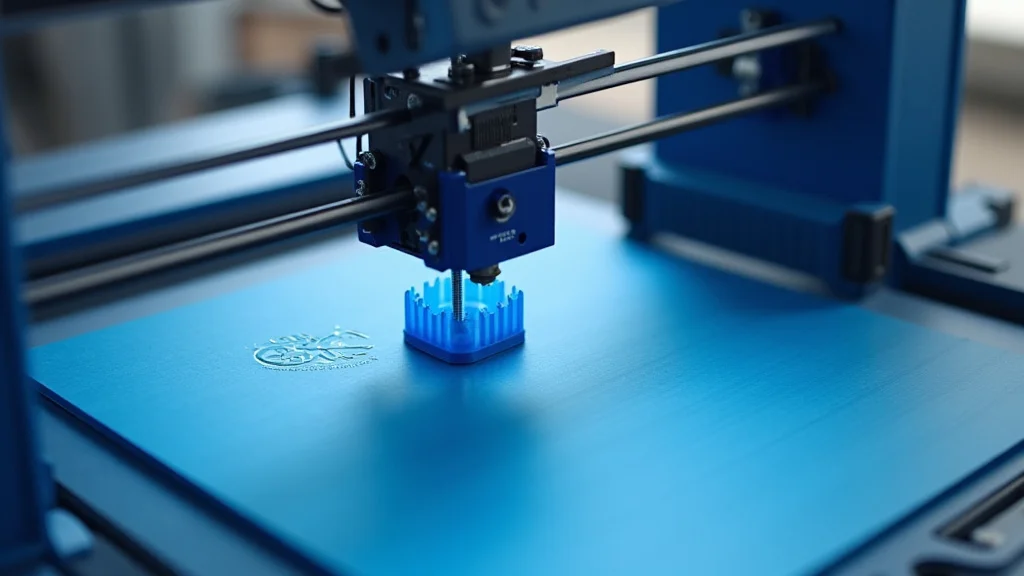
Picture this: you’re ready to create a flexible, durable part, maybe a phone case or a protective sleeve for your tools. You’ve downloaded your design and fired up your printer, only to be frustrated by spaghetti-like results. It’s a common struggle when working with thermoplastic polyurethane (TPU). This guide aims to help you avoid that frustration by exploring what makes the best printer for TPU and how to achieve perfect prints. By the end, you’ll know how to select the right equipment, the right settings, and how to troubleshoot common issues. You’ll gain the knowledge to confidently print with TPU and create high-quality, flexible parts, enhancing both your personal projects and your professional output.
Key Takeaways
- Understand the key features to look for when choosing a printer for TPU.
- Learn about essential printer settings like bed temperature and print speed.
- Discover how to troubleshoot common TPU printing problems.
- Find out about ideal filament storage conditions to prevent print defects.
- Explore specific printer models that have a strong reputation for printing with TPU.
- Gain practical tips for successful TPU printing, like using the right build surface.
Choosing the Right Printer for TPU Filament
Selecting the ideal 3D printer for TPU (Thermoplastic Polyurethane) is an essential first step. Several factors come into play, influencing the success of your flexible prints. This section covers the fundamental features you need to consider. The right printer allows you to fully realize the capabilities of TPU filament, unlocking a world of flexible and durable parts.
Essential Features for TPU Printing
- Direct Drive Extruder: A direct drive extruder is critical for TPU. This design positions the extruder directly above the hot end. This close proximity minimizes the distance the filament travels, reducing the likelihood of the flexible TPU buckling or getting tangled before it reaches the nozzle.
- Enclosed Build Chamber: An enclosed build chamber provides a stable environment by protecting the print from drafts and maintaining consistent temperatures. This stability minimizes warping and helps with layer adhesion, essential for achieving the best results with TPU.
- Heated Bed: A heated bed is non-negotiable for TPU. The bed helps with adhesion, preventing the part from detaching from the build plate during printing, which often happens due to the flexible nature of the material. A bed that heats to the correct temperature is important.
- Flexible Build Plate: A flexible build plate makes removing TPU prints a lot easier. It also helps prevent damage to the print.
- Nozzle Compatibility: A nozzle made of hardened steel or other wear-resistant material is recommended. TPU is an abrasive material, and a standard brass nozzle can wear down quickly, leading to poor print quality.
Direct drive extruders offer superior control over the filament compared to Bowden tube setups. This precision is vital for handling the flexibility of TPU. The direct configuration allows for quicker retraction and more accurate filament delivery, resulting in cleaner prints and better dimensional accuracy, particularly for complex geometries and fine details. This setup is a must-have for consistent and reliable TPU printing.
An enclosure protects the part from temperature fluctuations, which can warp flexible filaments like TPU. Moreover, an enclosed build chamber can reduce the risk of fumes and odors. Maintaining a stable temperature around the print also ensures uniform cooling, resulting in improved layer adhesion and superior mechanical properties. Some printers also offer heated build chambers for even better control over printing conditions, which is beneficial for TPU.
A heated bed is crucial for ensuring the first layer sticks to the print surface and provides even cooling. The heated bed temperature setting is critical. Too low, and the print won’t stick; too high, and the print could deform. Check the filament manufacturer’s recommendations for ideal bed temperatures. This temperature should remain stable throughout the print to maintain consistent adhesion and prevent warping. A heated bed enhances the quality of prints.
A flexible build plate is a must when printing with TPU. Because TPU is flexible, it can be tricky to remove prints from the build plate. A flexible build plate bends, allowing you to easily pop the prints off without the need for scrapers or other tools that could damage the print or the plate. This type of build plate also resists warping and improves adhesion during the printing process. Some build plates feature a magnetic base for easy removal and reattachment.
Choosing the correct nozzle material is key for longevity and print quality when working with TPU. Hardened steel or other wear-resistant nozzles can stand up to the abrasive nature of TPU. These materials are also resistant to high temperatures. The right nozzle material, combined with the correct nozzle temperature, improves print accuracy and reduces the risk of nozzle clogging. Some nozzles are also coated to help with reducing the friction and improve the print quality, like those made from ruby or other composite materials.
Printer Settings and Filament Preparation
After choosing the right best printer for TPU, the next steps involve fine-tuning the printer’s settings and proper filament preparation. Understanding the nuances of these settings will significantly impact the outcome of your flexible prints. Correct settings are vital for achieving the desired results.
Key Settings for Successful TPU Printing
- Nozzle Temperature: Finding the perfect nozzle temperature is a balancing act. It directly affects the filament’s flow and the bonding between layers. Experimenting within the manufacturer’s suggested temperature range is essential.
- Bed Temperature: The bed temperature helps with layer adhesion and prevents warping, which is crucial for TPU. Adhesion is vital when printing flexible materials.
- Print Speed: Printing slowly is a good rule with TPU to maintain accuracy and reduce the chance of errors. Faster speeds can lead to extrusion issues.
- Retraction Settings: Correct retraction settings help minimize stringing and oozing, which can be common issues with TPU. Optimize these settings to reduce filament flow.
- Layer Height: The ideal layer height for TPU will depend on the nozzle size and the desired level of detail. Choosing the correct layer height influences both the print quality and the print time.
The nozzle temperature impacts the way TPU melts and extrudes. If the temperature is too low, the filament might not melt correctly. If the temperature is too high, the TPU can become excessively soft and lead to oozing or stringing. The ideal temperature varies based on the specific TPU type, but most manufacturers offer guidelines on the filament packaging or website. Start with the lower end of the recommended range and raise the temperature in small increments, assessing the print quality after each adjustment to find the sweet spot.
The bed temperature affects how well the first layer sticks to the build plate. A bed that is too cold could cause the print to detach, while a bed that is too hot could cause the bottom layers to deform. Each type of TPU will have its own ideal bed temperature. The optimal setting can vary based on the build plate material and the ambient temperature. Begin with the manufacturer’s recommendations and make small adjustments. A good practice is to print a small test part, like a flat square, to check for adhesion and ensure the bottom layers remain flat.
The print speed is a critical setting for TPU. The inherent flexibility of TPU means that printing too fast can cause problems, such as extrusion inconsistencies, stringing, and failed prints. Reducing the print speed allows the printer to handle the filament more accurately. Experimenting with different speeds is recommended, starting at slower settings like 20-30 mm/s. Slower speeds allow the nozzle to deposit the material accurately and allow each layer to bond effectively. Increase the speed only if the print quality remains consistent. Fine-tuning the speed is critical for balancing print time and quality.
Retraction settings control how the printer pulls the filament back from the nozzle when it moves between print areas. Incorrect settings can lead to stringing, where thin strands of filament connect different parts of the print, and oozing, where the filament drips from the nozzle. When printing with TPU, it is important to carefully adjust these settings. Begin with the manufacturer’s suggested values, and then make small adjustments based on the observed results. Reduce the retraction distance and experiment with the retraction speed to find the ideal combination for minimizing these print defects and achieving clean prints.
Layer height significantly impacts the print quality and the time it takes to print a part. A smaller layer height results in finer details and smoother surfaces, but it also increases the print time. A larger layer height allows for faster printing, but it might result in more visible layer lines. When printing with TPU, it is important to strike a balance between speed and quality. Using a nozzle with a standard size (0.4mm) is recommended. Experimenting with different layer heights is recommended. Consider starting with a layer height between 0.1 to 0.2 mm to achieve a good balance of detail and speed, and then fine-tune it based on the part’s complexity and the desired finish.
Preparing the Filament
- Storage: TPU is hygroscopic, meaning it absorbs moisture from the air. Proper storage is necessary to prevent print defects such as bubbles, poor layer adhesion, and surface imperfections.
- Drying: Before printing, especially in humid environments, drying the filament is vital to get rid of any absorbed moisture. Dry filament extrudes better, leading to improved adhesion and smoother prints.
- Nozzle Cleaning: Make sure the nozzle is free of debris before starting a print. A clean nozzle prevents clogs and ensures smooth filament extrusion, critical for TPU.
- Build Plate Preparation: Always use an appropriate build surface for TPU. Clean the build plate before each print. A clean build plate ensures the first layer sticks properly.
Keeping TPU dry is essential for successful prints. Store your filament in an airtight container with desiccant packs to absorb moisture. Even unused filament can absorb moisture over time, leading to print defects. Before each print, especially in humid environments, consider drying the filament. You can use a filament dryer or a food dehydrator set to a low temperature to remove any absorbed moisture. Dry filament extrudes more smoothly, adheres better, and results in higher-quality prints. Proper storage and drying are critical for consistent print quality.
TPU readily absorbs moisture from the environment. This moisture can cause print defects. Before each print, especially in humid climates, drying the TPU filament is beneficial. Using a filament dryer set to a low temperature can eliminate the absorbed moisture. The drying process helps to ensure that the filament extrudes smoothly and bonds well, which reduces problems such as bubbling and poor layer adhesion. This step is a good practice, particularly when you’re facing printing errors. It is a simple step with a significant impact on print quality.
Always ensure your printer’s nozzle is clean and free from any obstructions or residual material before starting a print. The flexible nature of TPU can sometimes lead to blockages, which will disrupt the extrusion process and cause print failures. Use a nozzle cleaner, or perform a manual cleaning, or use the preheating and cool-down cycles. A clean nozzle ensures that the filament extrudes smoothly and uniformly. Always make sure to clean the nozzle if any problems are observed during the print. Taking this simple step helps to maintain print quality and reduces the occurrence of print defects. Routine nozzle cleaning is part of the process.
Build plate preparation is a critical step for successful TPU printing. A clean build plate promotes the necessary adhesion for the first layer. Before printing, clean the build plate with isopropyl alcohol or a similar cleaning agent. A clean and prepared build plate ensures the first layer adheres correctly and is essential for preventing warping or detachment during printing. The type of build plate material should match the needs of your project. If using a build plate such as glass, it may be necessary to use an adhesive. Checking the build plate and cleaning it is an essential part of the process.
Troubleshooting Common TPU Printing Problems
Even with the best printer for TPU and perfect settings, printing with TPU can sometimes present challenges. Being able to recognize and resolve common issues is key to obtaining successful prints. This section covers various problems that you might encounter. Understanding these common problems will allow you to quickly adjust settings and achieve the desired results.
Common TPU Print Problems and Their Solutions
- Stringing and Oozing: Stringing and oozing occur when thin strands of filament appear between different parts of the print. This problem is common in TPU because of its flexible nature.
- Warping: Warping occurs when the corners or edges of a printed part lift from the build plate. This can also happen in the center of the print.
- Poor Layer Adhesion: Poor layer adhesion results when the layers of the printed part do not stick together properly, leading to weak or separated prints.
- Clogging: Clogging refers to a blockage in the nozzle that can stop the flow of filament, causing failed prints. TPU’s flexibility can increase the likelihood of clogs.
- Under-Extrusion: Under-extrusion occurs when insufficient filament is extruded, resulting in gaps or weak layers in the printed part.
Stringing and oozing is often the result of improper retraction settings, or excessive heat. To resolve these issues, start by adjusting the retraction settings. The retraction distance and speed will need to be optimized for your specific printer and TPU filament. Decrease the nozzle temperature slightly, as excessive heat can cause the filament to become too fluid. Slowing down the print speed might also help. Ensure the nozzle is clean and free of debris. If the issue continues, consider drying the filament to remove any absorbed moisture. Fine-tuning these settings can make your prints cleaner.
Warping is often related to cooling or adhesion problems. Start by checking the bed adhesion. Using a heated bed at the correct temperature can improve adhesion. Make sure the bed surface is clean. An enclosure can also help by maintaining a more consistent temperature. Check for drafts. Reduce the bed temperature if the print adheres well and consider using a brim or raft to provide extra support and improve the initial layer adhesion. Optimizing the settings and environment minimizes warping.
Poor layer adhesion often results from incorrect print temperatures or printing speeds. Review the nozzle and bed temperatures, and make sure that they are suitable for the specific type of TPU filament being used. Layer adhesion can be improved by printing at a slightly higher nozzle temperature. Slowing down the print speed can also enhance the bonding of the layers. Verify that the printer is correctly calibrated and the bed is level. Clean the build surface to ensure a good initial layer adhesion. These adjustments can enhance the durability and the print quality.
Clogging in the nozzle of your 3D printer can be particularly challenging when printing with TPU. TPU, with its flexibility, is prone to clogs if not handled correctly. Common causes include printing at too low of a temperature or the presence of debris in the nozzle. The solution is to ensure the temperature is correct and that the filament is not degrading in the hot end. Perform a cold pull to remove any remaining material. Hardened steel or wear-resistant nozzles are recommended to reduce the chance of clogs. Using a nozzle cleaning needle can also help.
Under-extrusion is often caused by a variety of factors, including incorrect temperature settings, partial clogs in the nozzle, and issues with the extruder itself. Review the nozzle and bed temperatures and filament flow settings. Ensure the nozzle temperature is appropriate for the TPU filament. Check the nozzle for any obstructions or clogs. Make sure that the extruder is correctly calibrated and extruding the right amount of filament. Sometimes, increasing the flow rate can compensate for under-extrusion. Addressing the root causes can improve the overall print quality.
TPU Filament Considerations
The choice of TPU filament is just as important as the printer itself. Different types of TPU filament will have varying properties and print characteristics. Exploring the options available, you can select the most appropriate filament for your project. This section covers various aspects of TPU filaments.
Types of TPU Filaments
- Shore Hardness: The Shore hardness scale measures the material’s flexibility. Lower values mean the material is more flexible, while higher values indicate more rigidity.
- Material Composition: TPU can be made from different base materials, such as polyester or polyether. The composition impacts the mechanical properties and resistance to external factors.
- Color and Transparency: TPU filaments are available in a variety of colors and levels of transparency, adding options for aesthetics. Choose based on the visual and functional requirements of the project.
- Brand Reputation: Select well-known brands that provide consistent quality and reliable performance. Reputable brands often offer more documentation and support.
Shore hardness is a key factor in choosing the correct TPU for your project. It is usually measured on the Shore A scale. TPU filaments are available in various Shore hardness ratings, ranging from very flexible to semi-rigid. Selecting the right Shore hardness depends on the application. For example, a phone case might require a softer TPU (around 70A-80A) for flexibility and shock absorption, while a more rigid part might require a higher Shore hardness (95A). Always check the material’s data sheet for values. Understanding the Shore hardness is crucial for choosing the right material.
TPU filaments are made from various polymers, each offering unique properties. Polyester-based TPUs are known for their high tensile strength and resistance to oils and solvents. Polyether-based TPUs are known for their enhanced flexibility, low-temperature performance, and resistance to hydrolysis. When selecting a TPU filament, consider the application and the environment the part will be exposed to. Select the material that provides the best combination of mechanical properties and environmental resistance for your needs. Always check the material data sheets.
TPU filaments come in a broad range of colors, including transparent and translucent options. The color and transparency of the filament can impact the appearance of the printed part. Transparent or translucent filaments are suitable for parts where light transmission is necessary. Colored filaments let you add aesthetic value to your 3D-printed parts. When choosing the color, consider the overall design and functionality of the finished product. This lets you match the needs of your project.
The brand of TPU filament can influence the print quality and the reliability of the 3D printing experience. Using filament from a well-regarded brand offers the benefit of known quality, consistent performance, and detailed technical specifications. These brands usually provide detailed information about recommended print settings, material properties, and any potential issues. They can also offer support and troubleshooting resources, which are essential for achieving the best results with TPU. Doing research, reading reviews, and choosing from trusted brands ensures a better printing experience. Select filaments from the brands that offer consistent and dependable performance.
Printer Recommendations and Examples
Selecting the right equipment is key to success. This section reviews specific printers known for their capability with TPU, providing insights into their strengths and capabilities. These recommendations are based on performance and user feedback. The best printer for TPU will depend on your specific needs and budget.
Recommended 3D Printers for TPU
- Prusa MK3S+: Known for its reliability and precision, the Prusa MK3S+ is a popular choice among enthusiasts. Its direct drive extruder and heated bed are key for TPU.
- Creality Ender 3 Series: The Ender 3 series is a low-cost option that can be upgraded with a direct drive extruder. These printers can be modified for TPU printing.
- Anycubic Kobra Series: Anycubic Kobra printers often come equipped with direct drive extruders and heated beds, making them suitable for flexible filaments. These printers provide ease of use.
- FlashForge Adventurer Series: FlashForge Adventurer series printers often come with enclosed build chambers and heated beds, which create a stable environment for printing TPU. Their enclosed design supports the process.
The Prusa MK3S+ is frequently recommended for 3D printing with TPU. It is known for its reliability and ease of use. It features a direct drive extruder, which makes it well-suited for printing flexible filaments, and a heated bed, which is vital for good bed adhesion. The printer’s firmware includes built-in profiles and settings that can be customized for different materials, including TPU. Its automatic bed leveling and sensor features aid in getting consistent results. The Prusa MK3S+ also provides a large community of users and detailed online resources.
The Creality Ender 3 series, with its affordable price, offers a cost-effective option for printing with TPU. Although the standard Ender 3 features a Bowden tube extruder, it can be upgraded to a direct drive setup. This is recommended for better TPU printing. These printers come with heated beds and are generally reliable. These printers require some modifications to get the best results with TPU. Researching modifications and tuning the settings are essential. With proper upgrades and settings, these printers can produce high-quality TPU prints.
The Anycubic Kobra series is often a good option for printing with TPU. Several models in this series come with direct drive extruders. They also feature heated beds, essential for TPU printing. They provide ease of use. These printers provide advanced features, and they usually come pre-calibrated. Users have reported good results. Always make sure to check the specific model’s specifications. The Anycubic Kobra series is also equipped with useful features like automatic bed leveling. The Anycubic Kobra series is a good choice for printing with TPU.
FlashForge Adventurer series printers offer enclosed build chambers and heated beds, crucial elements for printing TPU. Enclosed chambers are helpful for maintaining stable temperatures. The direct drive extruder is a standard feature. These printers come with pre-configured settings. They are often easy to use. The FlashForge Adventurer series offers a good combination of features. FlashForge printers often include a user-friendly interface. They also often provide pre-configured settings for different materials. This ensures a consistent printing experience with TPU filaments.
Practical Tips for TPU Printing Success
Successful TPU printing involves more than just choosing the correct printer. Certain practices will improve your chances of success. From using the right bed adhesion to optimizing your print environment, this section delivers valuable, actionable advice.
Achieving the Best Results with TPU
- Use the Correct Build Surface: Choosing the right build surface is key for good bed adhesion. Consider using a surface specifically designed for flexible filaments.
- Calibrate Your Extruder: Correct extruder calibration ensures that the printer extrudes the correct amount of filament. It is critical for getting the right dimensions and print quality.
- Optimize Print Environment: An enclosed build chamber or a draft-free environment provides a more stable temperature. This enhances layer adhesion and minimizes warping, critical for TPU.
- Review and Tune Settings: Always review the settings recommended by the manufacturer. After reviewing the settings, be prepared to adjust them based on the specific filament and printer being used.
Using the correct build surface can significantly improve the bed adhesion of TPU. Glass beds with a glue stick, PEI sheets, or specialized build surfaces like the BuildTak FlexPlate can improve adhesion. These surfaces provide excellent adhesion during printing and make removing the finished print easier. Always clean the build plate before each print. Choose a build surface that works well for the type of TPU being used, and make sure that it is clean. Make sure the bed surface is level before beginning the print. The correct build surface simplifies the process.
Accurate extruder calibration is essential for getting the correct dimensions and the best print quality. The extruder needs to push the correct amount of filament. Correct calibration ensures that the extruded amount of filament is accurate. If too little filament is extruded, the print will have gaps. If too much filament is extruded, the print will have imperfections. Calibration typically involves measuring the filament extruded and then adjusting the settings accordingly. Doing this helps to minimize imperfections.
Creating an ideal print environment is essential for successful TPU printing. TPU is sensitive to temperature variations. An enclosed build chamber or even a simple enclosure can provide a more stable thermal environment. Keeping the printer away from drafts and temperature fluctuations enhances layer adhesion and reduces the risk of warping. An enclosure helps to maintain consistent temperatures. Optimizing the print environment will ensure consistent results.
Each printer and filament combination will have unique requirements. Taking time to fine-tune the settings is key for achieving the best results with TPU. Using the manufacturer’s recommended settings for nozzle temperature, bed temperature, print speed, and retraction settings is a good starting point. You will likely need to adjust these settings based on your specific printer and the type of TPU being used. Small adjustments will likely be needed to optimize print quality. Document these changes for each filament type. The adjustments will ensure the best possible results.
Common Myths Debunked
Myth 1: TPU is always challenging to print.
While TPU can be more difficult than other filaments like PLA or ABS, it is not always a challenge. The complexity of printing TPU depends on the specific type of TPU and the printer’s setup. With the correct printer settings and preparation, such as using a direct drive extruder, a heated bed, and the right temperatures, TPU can be printed successfully and with relative ease. The key is in understanding the material and its properties. Following manufacturer recommendations and making the correct adjustments can greatly enhance the printing process and reduce complications.
Myth 2: Any 3D printer can print TPU.
While many 3D printers can print TPU, some are better suited for it than others. Printers with a direct drive extruder are more effective because they reduce the distance the filament travels between the extruder and the nozzle. Printers with heated beds, which provide uniform heating for the printing surface, are crucial for adhesion and preventing warping. While it is true that some printers can print TPU, printers designed for flexible filaments significantly improve the print quality and the reliability of the printing process.
Myth 3: You can print TPU at any speed.
Printing speed is important when printing with TPU. While it is possible to print at faster speeds, it is not usually recommended. Due to the flexibility of TPU, printing too fast can lead to extrusion issues. It can also cause stringing and poor layer adhesion. The ideal print speed is generally slower than for rigid materials. Slower speeds allow the printer to handle the filament more accurately. These slower speeds enable each layer to bond effectively. Adjusting the print speed and print quality is a critical factor.
Myth 4: Higher bed temperatures always improve adhesion.
Higher bed temperatures will not always improve adhesion when printing with TPU. While a heated bed is essential for TPU printing, the ideal temperature varies by filament type. While a high temperature can improve initial adhesion, going too high can cause the first layers to deform or warp, which causes the print to fail. Experimenting with bed temperature is crucial, starting with the manufacturer’s recommendations. Print a small test part like a flat square. Monitor how it sticks to the bed at various temperatures. This will help you find the correct temperature.
Myth 5: TPU filament doesn’t require drying.
TPU, being a hygroscopic material, absorbs moisture from the air. Therefore, it is important to dry the TPU filament before printing, especially in humid environments. Even new, unopened filament can absorb moisture over time. The moisture can lead to several print issues. These issues include stringing, poor layer adhesion, and surface imperfections. Drying the filament removes the absorbed moisture. Using a filament dryer or a low-temperature oven can greatly improve print quality. Drying is a necessary step, especially in humid conditions.
Frequently Asked Questions
Question: What is the best bed surface for TPU?
Answer: For TPU, a build surface like a PEI sheet, a glass bed with glue, or a flexible build plate often provides excellent adhesion and makes print removal easier.
Question: What print speed should I use for TPU?
Answer: Start with a slower print speed (20-30 mm/s) for TPU to ensure accurate extrusion. Adjust the speed, as needed.
Question: How do I store TPU filament?
Answer: Store TPU in an airtight container with desiccant packs to protect it from moisture. This will help to reduce problems.
Question: Why is my TPU print stringing?
Answer: Stringing in TPU prints is often caused by incorrect retraction settings or an excessively high nozzle temperature. Adjust the settings to resolve this problem.
Question: Can I print TPU on any 3D printer?
Answer: While many 3D printers can print TPU, those with a direct drive extruder and a heated bed are best suited for the job.
Final Thoughts
The best printer for TPU ultimately depends on your specific needs, your budget, and the types of parts you intend to create. Consider the printer’s features, such as the extruder type, build chamber, and heated bed, and match them with the filament properties. Remember that the right printer is only the starting point. Careful preparation, including filament storage and drying, is vital to avoid moisture-related problems. Correct settings like nozzle temperature, bed temperature, and print speed are key to achieving successful prints. Troubleshooting and understanding common issues like stringing or warping will let you adjust the settings and achieve the best results. Take the time to experiment and test the different settings. With the right equipment, the right preparation, and a little practice, you can confidently create durable, flexible parts. Explore the possibilities of TPU, and take your printing projects to new levels!
Leave a Reply